


5 Steps to List Your SaaS App on Azure Marketplace
Want to list your SaaS app on Azure Marketplace? Here's the quick guide:
- Prepare Your App: Ensure it meets Microsoft's technical and legal standards. Use secure authentication (like Azure Active Directory) and provide clear terms of service and privacy policies.
- Set Up a Marketplace Account: Join the Microsoft AI Cloud Partner Program, create a publisher profile, and accept the required agreements.
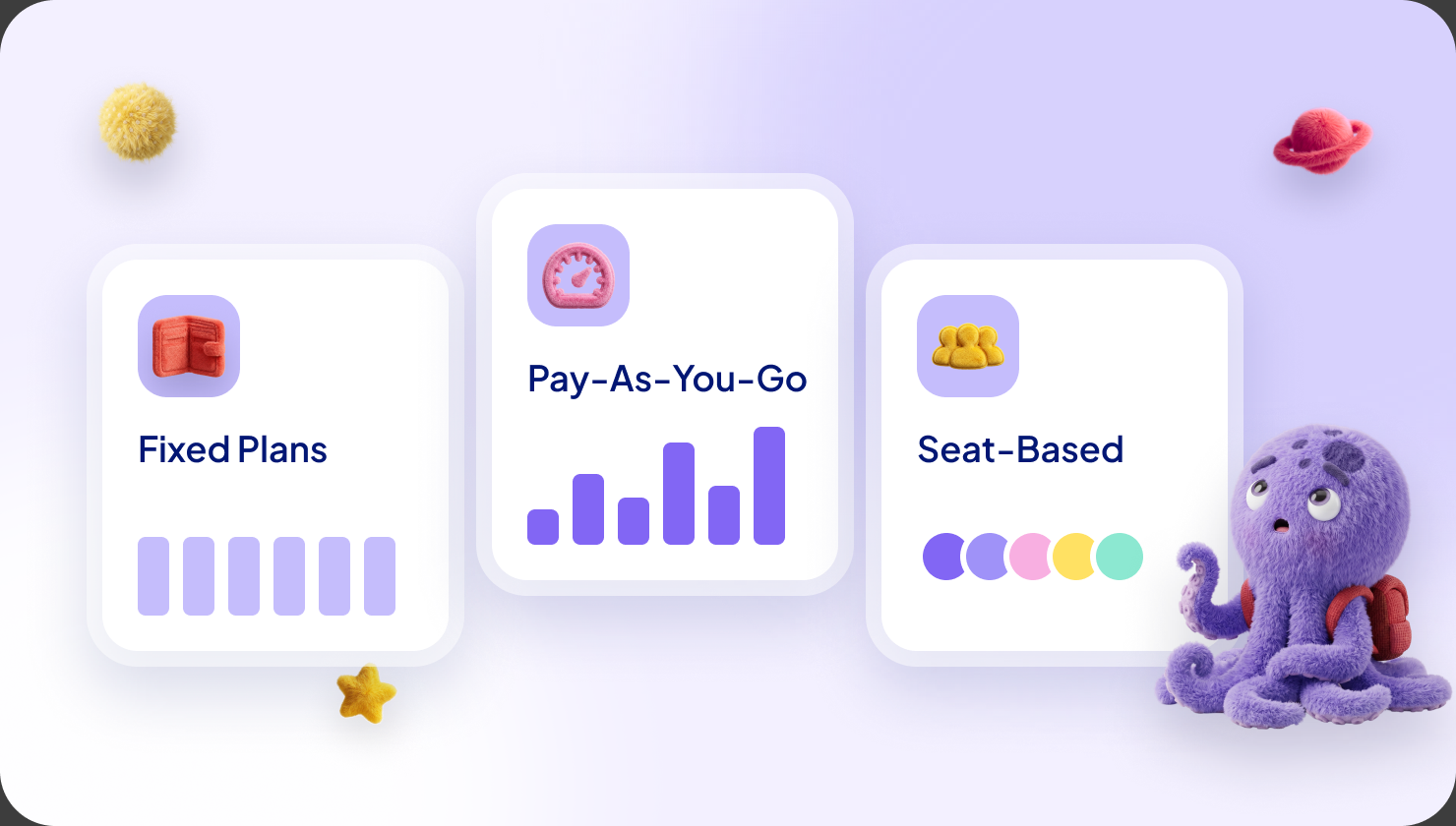
- Build Your SaaS Offer: Choose a pricing model (Flat Rate, Per User, or Usage-Based), create product tiers, and select market regions.
- Submit for Review: Finalize your app's technical setup and marketing content, then go through Microsoft's certification process.
- Publish and Track Results: Launch your app, monitor metrics like sales and engagement, and keep your listing updated.
Quick Tip: Offer a free trial, localize for different regions, and continuously improve your listing to maximize visibility and sales.
This step-by-step process ensures your SaaS app is ready to reach enterprise customers through the Azure Marketplace. Let’s dive into the details.
Step 1: Get Your SaaS App Ready
Make sure your app aligns with Microsoft's technical and legal standards.
Set Up Secure Authentication
Use OAuth through Azure Active Directory to manage secure user access. Configure redirect URIs, handle tokens properly, and set up user roles to meet the necessary standards. Additionally, ensure your app includes the required legal documentation.
Create Privacy and Terms Documents
Write clear privacy policies and terms of service that follow Microsoft's guidelines. Host these documents on easily accessible URLs so customers can review them without trouble.
Step 2: Set Up Your Marketplace Account
Once your SaaS app meets Microsoft's requirements, it's time to create your Azure Marketplace account. This process requires accuracy and complete documentation.
Join Microsoft Partner Network
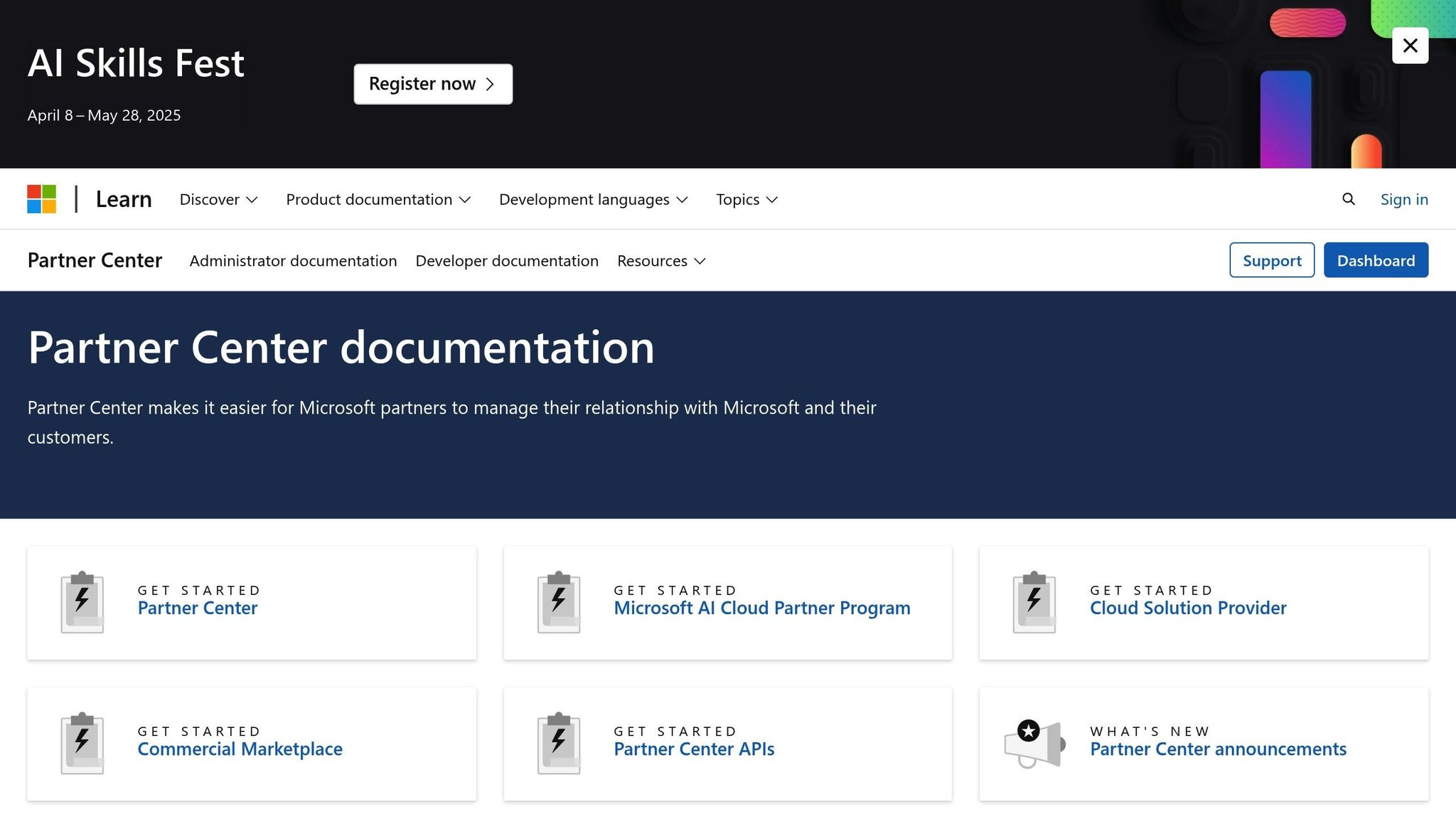
To access the Azure Marketplace, you must join the Microsoft AI Cloud Partner Program. Use your company work email to register - personal emails won't be accepted. Here's what you'll need:
- A valid company work email or Microsoft 365 work account
- Your company's legal business name and address
- Authorization to sign legal agreements on behalf of your company
If your organization already has an account with the Microsoft AI Cloud Partner Program, simply log into Partner Center with your credentials and enroll in the commercial marketplace program under Account Settings.
Complete Your Publisher Details
Your publisher profile is the backbone of your marketplace presence. Go to Account Settings in Partner Center to set up the following:
- A unique PublisherID (use only lowercase letters, numbers, hyphens, and underscores)
- Contact details for your primary point of contact
- Your company's location and business registration information
For U.S. companies, you'll need to provide your EIN (Employer Identification Number). Businesses in India must submit their Tax ID and PAN (Presence Across Nation) documentation.
Review Legal Requirements
Wrap up your account setup by reviewing and accepting these two agreements:
1. Microsoft Publisher Agreement
This agreement details the terms and conditions for selling on Azure Marketplace. Read it thoroughly, as it outlines your responsibilities as a publisher.
2. Microsoft AI Cloud Partner Program Agreement
If you're a new partner, this agreement defines the broader partnership framework with Microsoft. Make sure you have the authority to accept these terms on behalf of your organization.
Step 3: Build Your SaaS Offer
Once your marketplace account is set up, the next step is creating your SaaS offer listing. This part requires strategic planning to ensure your pricing and market approach align with your business goals.
Choose a Pricing Model
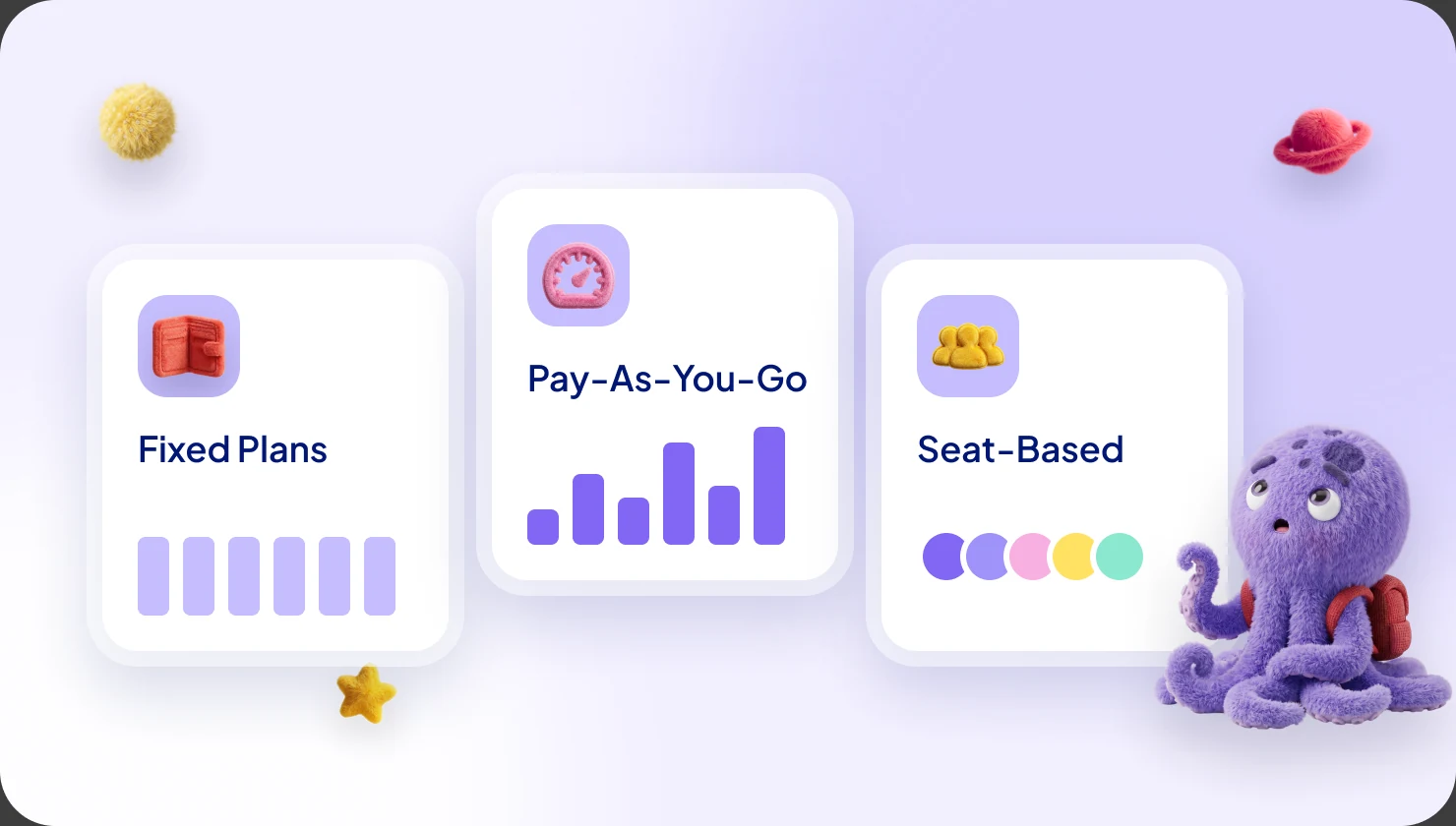
Azure Marketplace supports three main pricing models for SaaS applications:
- Flat Rate
Ideal For: Simple software licenses
Benefits: Consistent revenue and easier forecasting - Per User
Ideal For: Team-based solutions
Benefits: Grows with your customer base - Usage-Based
Ideal For: Resource-heavy apps
Benefits: Costs align with how much customers use your app
When deciding, consider your operating expenses and what your customers prefer. Remember, Microsoft charges a 3% store service fee on all transactable offers, so include that in your pricing strategy.
Set Up Product Tiers
Create product tiers to cater to different customer needs and budgets. You can include up to 100 plans (45 of which can be private).
Each plan should have:
- A unique Plan ID (lowercase, alphanumeric, up to 50 characters)
- Clear and concise plan names (up to 200 characters)
- Detailed feature descriptions (up to 3,000 characters)
Offering a one-month free trial can help attract new customers. However, keep in mind that free trials are not available for metered billing plans.
Once your plans are finalized, focus on identifying the best markets for your offer.
Choose Market Regions
Azure Marketplace operates in 141 geographic regions. Here's what to consider:
- Currency Management: Use the pricing spreadsheet to manage currency conversions. For multi-year deals, break them into one-year private offers with upfront payments to reduce risks from exchange rate changes.
- Tax Requirements: Start with regions where Microsoft handles sales and use tax remittance. This simplifies tax compliance as you grow globally.
- Language Support: For regions outside your primary language, provide localized metadata to better connect with customers. Microsoft AppSource supports 40 languages across 60 markets, so focus on areas where you can offer strong customer support in their preferred language.
Step 4: Submit for Review
After finalizing your offer details, it's time to submit your app for certification by Microsoft. This process ensures your app meets all Azure Marketplace requirements. Building on your earlier technical setup and offer design, this step confirms your app is ready to go live.
Prepare Marketing Content
Make sure your marketing materials include these key elements:
- Offer Name
Requirements: Use a clear title with relevant keywords
Best Practices: Keep it concise and communicate your app's value - Short Description
Requirements: Limit to 256 characters
Best Practices: Highlight your main value proposition - Full Description
Requirements: Up to 5,000 characters, including HTML markup
Best Practices: Lead with benefits to engage potential customers - Screenshots
Requirements: Up to 5 images; 1280 x 720 px in PNG format
Best Practices: Showcase your app's key features - Logo
Requirements: PNG format, sized between 216 x 216 and 350 x 350 px
Best Practices: Ensure visibility even at smaller sizes
For the full description, focus on benefits right at the start to capture attention and drive conversions. Use HTML markup for better formatting, but keep the total character count under 5,000.
Finish Technical Setup
Ensure everything is technically sound by testing your API integration (purchase flow, subscription management, and usage reporting). Confirm SSL/TLS, authentication, and encryption are correctly configured. Also, provide detailed technical documentation, including installation guides, API references, and troubleshooting instructions.
Start Microsoft Review
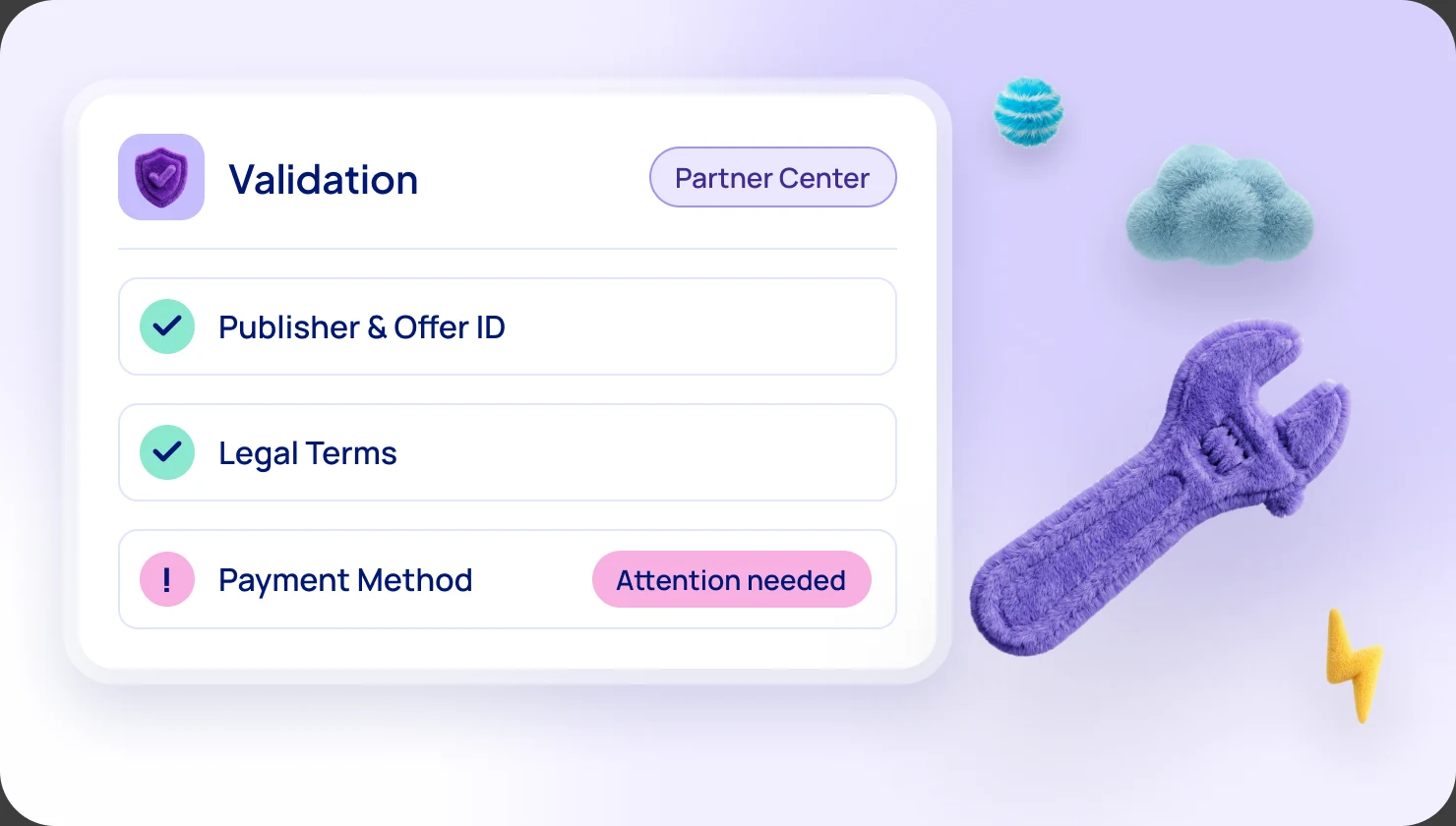
Microsoft's certification process involves three steps:
- Automated Validation: Checks purchase flow and lead management.
- Manual Review: Verifies business eligibility and technical compliance. Include clear testing instructions in the 'Notes for certification.'
- Preview Phase: Confirms the full purchase and setup flow works as intended.
"Offer listing content (such as the description, documents, screenshots, and terms of use) isn't required to be in English if the offer description begins with the phrase, 'This application is available only in [non-English language].'" - Microsoft Learn [1]
If any issues arise, the certification team will provide detailed feedback, including specific policy violations and suggested fixes [2]. Address all validation warnings quickly to keep the certification process moving smoothly.
Step 5: Publish and Track Results
Once your certification is complete, follow these steps to launch your SaaS offer and monitor its performance.
Go Live on Marketplace
After Microsoft approves your app, it's time to launch. Before hitting 'Go live,' double-check that all pages show as 'Complete.' This ensures your live offer aligns with the preview version.
You'll get status updates through:
- Email notifications sent to the account owner
- Action Center alerts in Partner Center
- Status updates as the offer moves through the process
Track Performance Metrics
The Partner Center provides tools to monitor your listing's performance. Here's what to keep an eye on:
- Sales Performance: Revenue, conversion rates
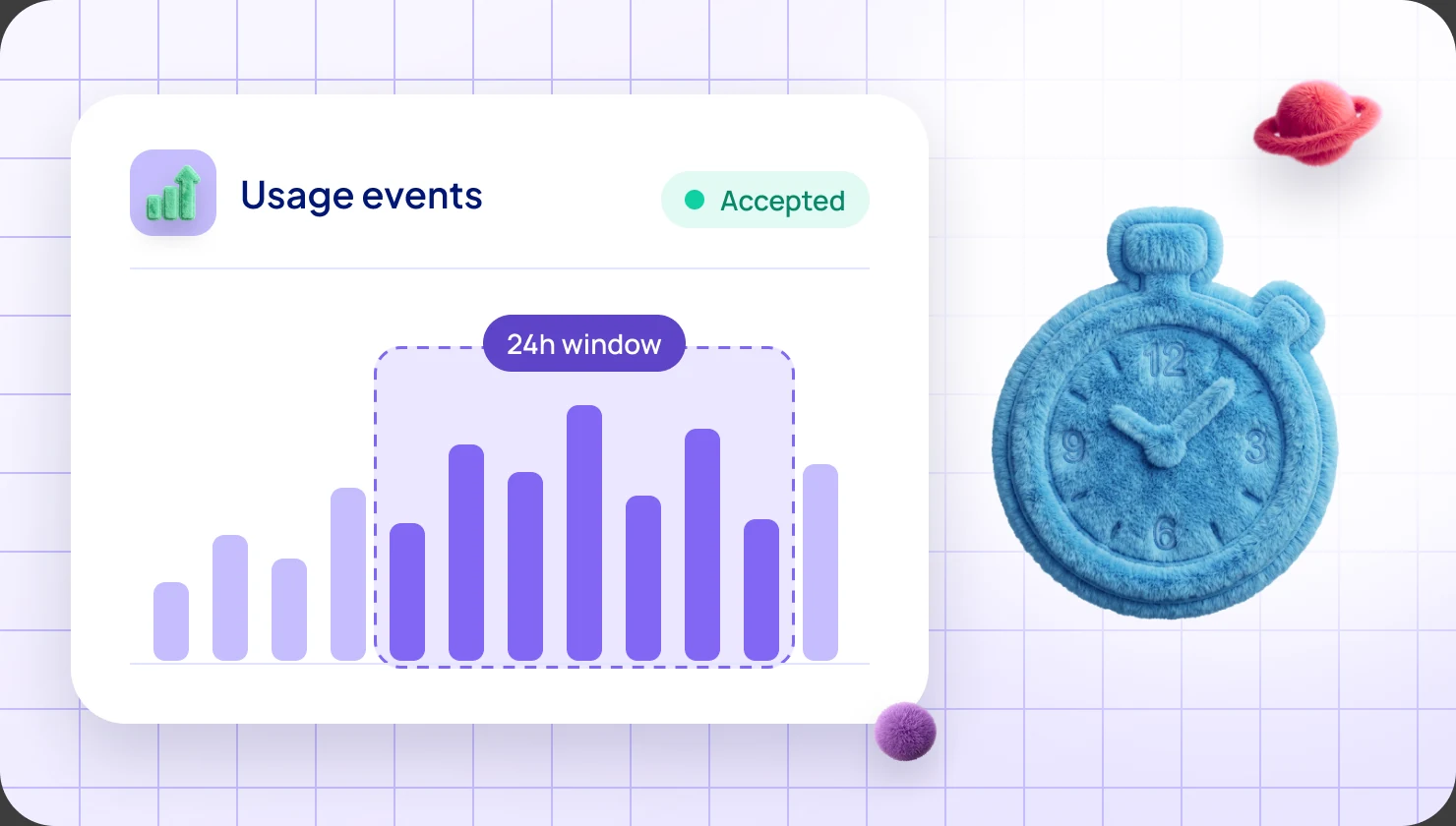
- Usage Patterns: Active users, deployment stats
- Customer Engagement: Page views, click-through rates
- Geographic Distribution: Regional sales data
These metrics help you fine-tune your strategy. Pay close attention to conversion rates and engagement to improve your marketplace presence.
Keep Your Listing Updated
Regular updates to your listing are crucial. Here's what to focus on:
- Revise product descriptions and screenshots to highlight new features
- Adjust pricing plans to align with market trends
- Refresh technical documentation as needed
- Monitor and address customer feedback to maintain a positive reputation
Next Steps
After a successful launch, it's time to boost your app's visibility and sales on Azure Marketplace. Here's how you can make the most of this opportunity:
Marketing Assets and Documentation
Create materials to showcase your app and support its listing:
- White Papers
Purpose: In-depth technical info
Format: PDF - Product Brochures
Purpose: Highlight key features
Format: PDF - Solution Checklists
Purpose: Step-by-step guides
Format: PDF - Case Studies
Purpose: Share success stories
Format: PDF
Track Campaign Performance
Add tracking parameters to your URLs to measure how well your marketing campaigns perform. For example:
https://azuremarketplace.microsoft.com/your-app?src=website&mktcmpid=spring2025
Use Partner Center's analytics dashboard to monitor and analyze campaign data. These insights can help you refine your website and marketing strategies.
Website Integration
Make it easy for potential customers to find your app by embedding Azure Marketplace "Get It Now" badges in key areas of your website, such as:
- Product pages
- Pricing comparison sections
- Feature documentation
- Customer testimonial sections
Include trackable links in these areas to monitor visitor activity and conversion rates.
Regular Updates
Keep your marketplace listing fresh by reviewing it every quarter. Focus on:
- Updating screenshots and descriptions to reflect new features
- Refreshing technical documentation
- Adjusting pricing based on market trends
- Ensuring compliance documentation is up to date